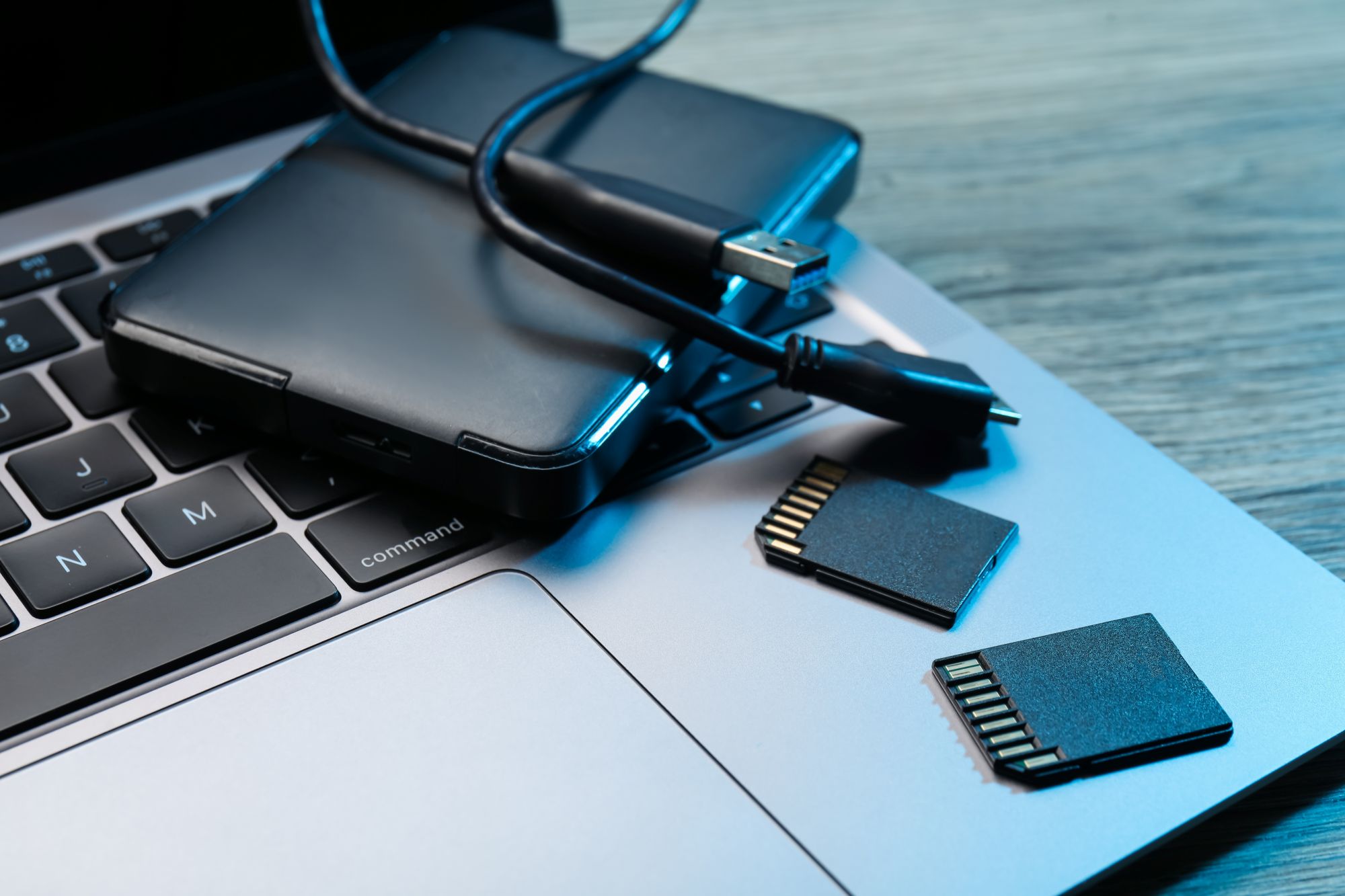
If your computer is showing signs that it might be failing (like slowing down, freezing, or struggling to turn on), it can be a good idea to back up your important files. These behaviors could be an early warning that your computer's drive, operating system, or another component is having trouble.
Don't wait to find out what's wrong before making sure your important files are protected. Let's take a look at what you should save first and how to prevent data loss from happening in the future.
What Should You Back Up First?
If you're short on time and your computer is actively on its way out, start with the files that would be impossible or difficult to recreate. That can include:
- Family photos and personal videos
- Important financial, tax, legal, or health documents
- Work and business files
- Schoolwork and current projects
- Creative files and original work
- Important contacts or locally stored email
- Files saved only on the desktop or in downloads
- Account recovery information you’ll need on another device
Programs and apps are usually a lower priority, as most can be downloaded or installed again.

Start With What You Can’t Replace
It can be tempting to start with your biggest folders, but think more about the files themselves. Family photos, original videos, scanned records, contracts, tax documents, business files, and years of creative work typically belong near the top of the priority list. If a file only exists on your local drive and doesn't have a copy anywhere else, this is the time to make a backup.
It's also a good time to check whether something you thought was backed up actually is. For example, a photo library might be syncing to the cloud, but another folder of older pictures might only exist on the computer's hard drive.
Microsoft's current Windows Backup tools can back up common folders like Desktop, Document, Pictures, Videos, and Music to OneDrive, but users need to make sure the folders they care about are actually included. Similarly, Mac users should check their iCloud settings to make sure files are syncing correctly.
Look Beyond the Documents Folder
Computer files have a tendency to spread out over time. You might have a tax form sitting in Downloads, or a creative project living on your desktop. Older business records might be stored inside of a folder you haven't opened in years.
Before assuming you've copied everything important, check places such as:
- Desktop
- Documents/Files
- Downloads
- Pictures/Photos
- Videos
- Music
- Project folders
- Any secondary internal drives
If you use specialized software for accounting, design, photography, videography, writing, or other work, find out where that program stores its files. They aren’t always kept in the common folders that you’d expect.
Protect Photos and Videos
For many people, photos and videos are the files they’d miss most. They also tend to take up a lot of space, which can make backing them up slower. If your computer is becoming increasingly unreliable, don’t assume you’ll have another opportunity to copy them later.
Start with the photos and videos that exist only on that computer. If some photos are already stored in a cloud service, verify that you can actually access them from another device before marking them as safe. Seeing a cloud icon beside a folder doesn’t always tell you whether every file has finished uploading.
Save Current Work and Ongoing Projects
If you use the computer for work, school, a business, or creative projects, protect anything active next.
These files often create the most immediate disruption if they disappear. Losing an unfinished presentation, client project, bookkeeping file, or semester’s worth of schoolwork can cause a problem very quickly.
Copy the current project along with any related files it depends on. If you regularly work in cloud-based tools, confirm that recent changes have synced successfully before assuming your work is available elsewhere.
What About Passwords and Account Access?
If you use a password manager or your browser’s secure password-sync feature, make sure you know how to sign into that account from another device. Also check that you still have access to the email address, phone number, authentication app, or recovery codes used for account verification.
Browsers like Chrome and Edge can sync passwords and other information across devices when those features are enabled. Windows Backup can also preserve certain account and Wi-Fi settings.
Avoid casually copying passwords into an unprotected document or spreadsheet just for the sake of having a backup. That creates a different security problem. Instead, make sure your secure password system and account-recovery options will still work if the computer doesn’t.
Is Cloud Sync the Same as a Backup?
Cloud storage is extremely useful, and it may already be protecting many of your files. But syncing and backing up aren’t exactly the same thing.
With a synchronized folder, changes made on the computer can also be reflected in the cloud. Microsoft, for example, explains that adding, changing, or deleting a file in a synced OneDrive folder updates that file online as well.
It's important to know what your service protects and whether it offers file history, deleted-file recovery, or previous versions. For especially important information, keeping an offline copy on a separate external drive or another backup location gives you an additional layer of protection. Making regular offline backups is also valuable in case of malware or ransomware.
Double (and triple) check that deleting the files from your failing computer (or resetting your device) won't delete them from the cloud. Knowing the difference can save you from a lot of panic and accidental data loss.
Where Should You Put the Backup?
You have several options when it comes to backing up your files. An external hard drive or solid-state drive can be useful when you need to move a large amount of data quickly. Cloud storage gives you access from another computer without relying on the original device.
Using both provides more protection than keeping everything in one place.
If you’re copying files to an external drive because the computer is failing, disconnect the drive safely after the backup is complete. Don’t leave your only backup attached to an unreliable or potentially compromised computer.
Most importantly, open a few of the copied files from the backup on another device. Make sure they’re really there and usable before you consider the job finished.
How Long Should You Keep Using a Failing Computer?
An increasingly unstable computer shouldn't be trusted with your only copy of important information. Repeated freezing, startup failures, unexplained crashes, overheating, storage errors, or unusual mechanical sounds deserve attention from a computer professional.
If you’re able to access your files normally, back up the highest-priority information before running updates, cleanup tools, or other troubleshooting steps.
If the computer is having serious trouble starting, repeatedly shuts down during file transfers, or contains data you absolutely cannot afford to lose, a repair or data-recovery professional may be the safest next step. Continued troubleshooting isn’t always worth the risk when the information is more valuable than the device.
Frequently Asked Questions About Backing Up a Failing Computer
What files should I back up first?
Start with anything you can’t easily replace, including personal photos and videos, important documents, current work, business records, school projects, and original creative files.
Should I back up my entire computer?
If the computer is still stable and you have the time and storage space, a more complete backup can be useful. If it’s becoming unreliable, prioritize irreplaceable personal data first rather than spending valuable time copying programs or files you can easily download again.
Is an external hard drive enough for a backup?
An external hard drive gives you another copy, which is helpful, but relying on only one backup location still carries risk. For very important files, consider keeping another copy somewhere separate, such as reputable cloud storage or a second drive stored safely.
How do I know whether my cloud files are actually backed up?
Sign into the cloud service from another device or through its website and verify that the files are present and current. Check whether large or recently changed files have finished syncing instead of relying only on the folder you see on the failing computer.
Should I try to repair the computer before backing it up?
If the files are important and the computer still gives you access to them, backing them up first is usually the safer order. Troubleshooting can wait until your irreplaceable data exists somewhere else.
Protect the Files Before You Fix the Computer
When a computer starts acting unpredictably, it’s tempting to focus on getting it back to normal. However, some reboot and recovery steps can lead to data loss if your files aren't backed up elsewhere.
Secure the photos, documents, projects, records, and account access you’d struggle to replace. Confirm that cloud copies really exist, and keep another backup when the information is especially important.
Once those files are safe, you’ll have much more wiggle room to decide whether the computer needs a repair, a replacement, or simply some troubleshooting.
This community resource is made possible through the generous support of local WhirLocal sponsors.