Your Wi-Fi network is the gateway to everything you do online—streaming movies, checking bank accounts, working from home, and keeping your smart devices connected. But without the right security, it could also be an open door for unwanted visitors.
Fortunately, protecting your home Wi-Fi network doesn’t require a tech degree. You can create a safer, more private online environment for you and your family with just a few simple steps.
Why Wi-Fi Security is Important
Many people assume their home network is safe because it’s password-protected, but hackers and bad actors are more resourceful than ever. An unsecured network can lead to:
- Stolen personal information or financial data
- Unauthorized access to smart devices
- Slower internet speeds (due to freeloading neighbors)
- In rare cases, legal issues if someone uses your connection for illegal activity
Securing your network with additional measures helps keep your information safe and your internet running smoothly.
Step 1: Change the Default Router Login
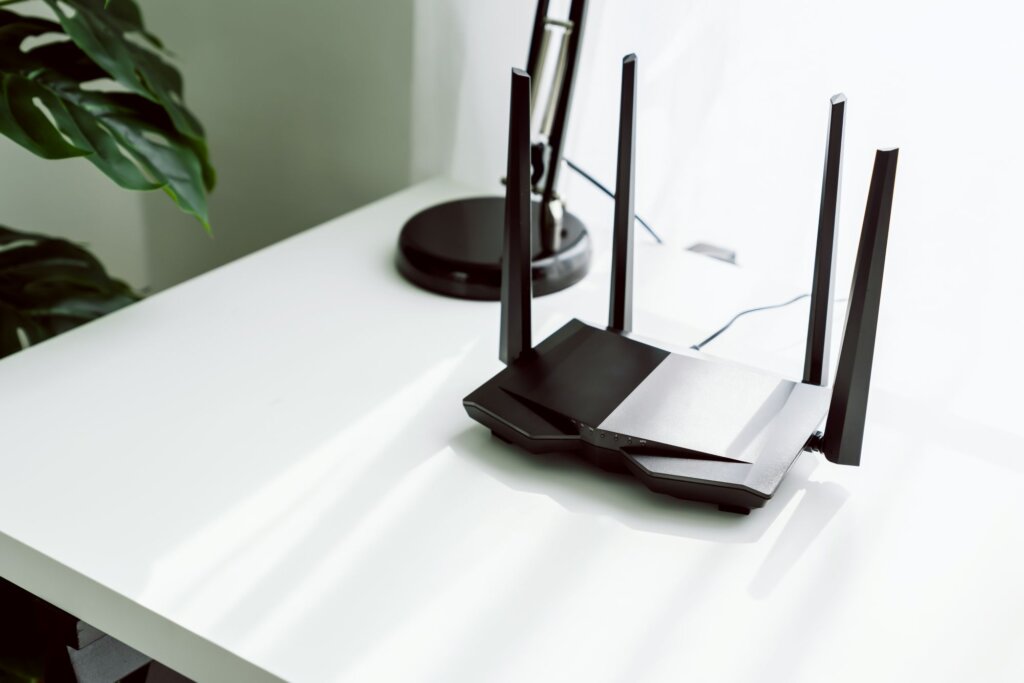
Every router comes with a default username and password, and unfortunately, these are often easy to find online. That’s why the first step is to change them. Follow the instructions from your brand of internet router. To create a strong password, use a mix of numbers, uppercase and lowercase letters, and special characters.
Step 2: Use a Strong Wi-Fi Password
Your Wi-Fi password is the first line of defense. Avoid easy-to-guess options like “password123” or your address.
Best practices:
- Make it at least 12 characters long.
- Mix uppercase, lowercase, numbers, and special characters.
- Avoid using personal info like birthdays or pet names.
Update your password regularly, especially if you’ve shared it with guests or neighbors in the past.
Step 3: Rename Your Network (SSID)
Your network name (SSID) is what shows up when people look for available Wi-Fi. Routers often come with names like “Linksys123” or “Netgear_01,” which can signal to hackers what type of equipment you have.
Instead:
- Choose a name that doesn’t reveal your location or identity.
- Avoid names like “SmithFamilyWiFi” or “123MainStreet.”
This adds a small layer of privacy and helps prevent unwanted attention.
Step 4: Enable WPA3 or WPA2 Encryption
Encryption scrambles your data so it can’t be read by anyone who doesn’t have the password.
Check your router settings:
- Look for security or wireless settings.
- Choose WPA3 if available (it’s the most secure). If not, WPA2 is still a strong option.
- Avoid WEP—it’s outdated and easily cracked.
If your router doesn’t support WPA2 or WPA3, it may be time to consider an upgrade.
Step 5: Turn Off Remote Management
Some routers allow you to access their settings remotely, but this feature can also be a security risk if it’s left on. To disable it, log into your router settings, find the “Remote Management” or “Remote Access” option, and turn it off, unless you specifically need it. This closes one more door that a hacker could use to get into your network.
Step 6: Keep Your Router’s Firmware Updated
Router manufacturers regularly release firmware updates to fix bugs and improve security.
To update:
- Log into your router’s admin panel.
- Look for a firmware or software update section.
- Install any available updates.
- Restart your router if it didn’t restart on its own
Some modern routers update automatically. Check your model’s documentation to be sure.
Step 7: Set Up a Guest Network
If you frequently have visitors or service professionals who need Wi-Fi access, consider creating a separate guest network. Having a separate network keeps your main network private and limits access to shared files or smart devices. You can change or disable it anytime. This way, your main devices and sensitive data stay on their own secure channel.
Key Takeaways
Taking just 10–15 minutes to tighten your home network’s security can offer peace of mind and better protection for your family’s online activity. With more devices connected than ever before, securing your Wi-Fi is essential.
If you’re unsure how to make these changes, your internet provider may offer support or even have a mobile app to help you manage your settings more easily.